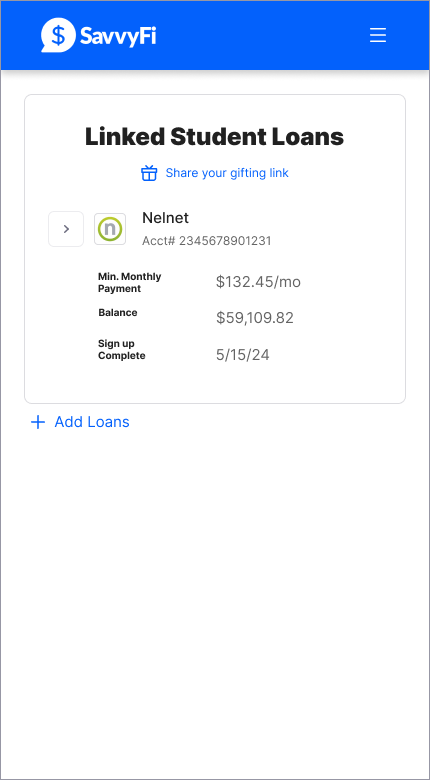
From the dashboard, click “Add Loans”. Then choose one of three ways to link your student loans to SavvyFi. Follow the step-by-step instructions below:
| 1. | From your dashboard, click "Add Loans" | |
 | ||
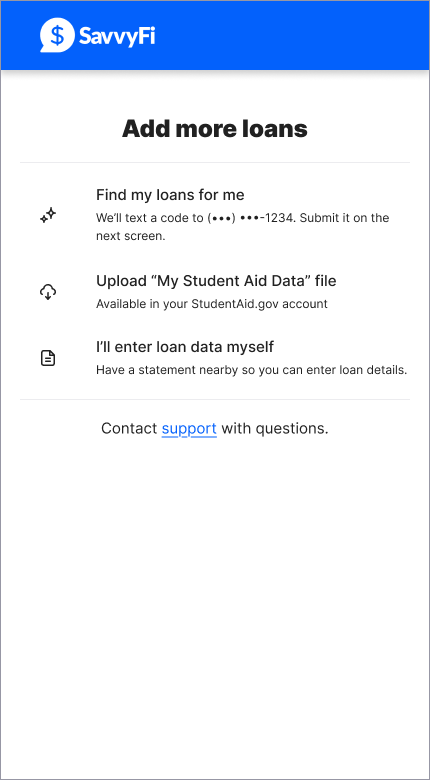
| 2. | Then choose one of three ways to link your student loans to SavvyFi: - Link your loans via your mobile number - Upload a My Aid Data (MAD) file - Enter your loan information yourself | |
 | ||
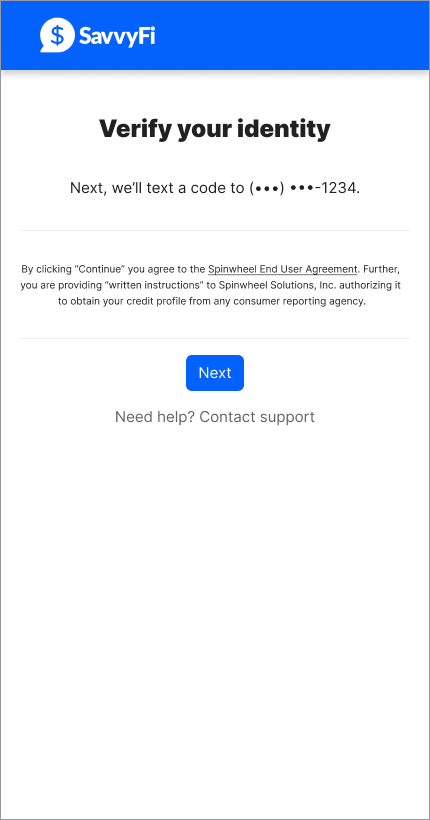
| 3 | A. Link your loans via your mobile number | |
1. | We'll text a code to the mobile number we have on file for you. | |
 | ||
| 2. | Enter the 6-digit code on the next screen | |
 | ||
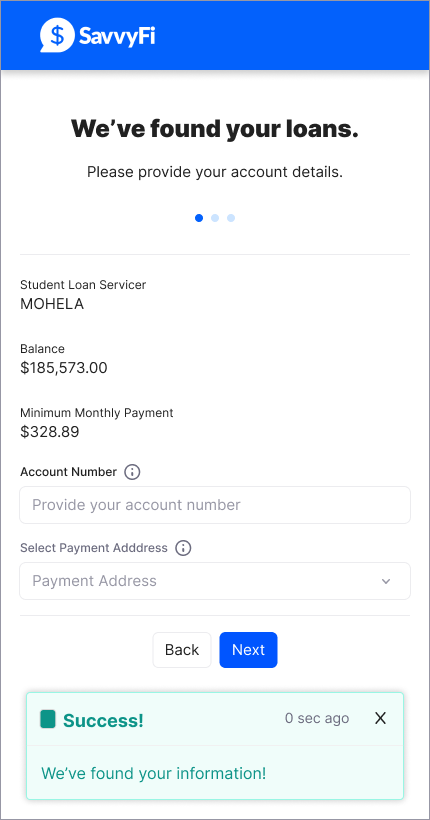
3. | If we find your loans, you will review them, and you may fill out any missing information. | |
 | ||
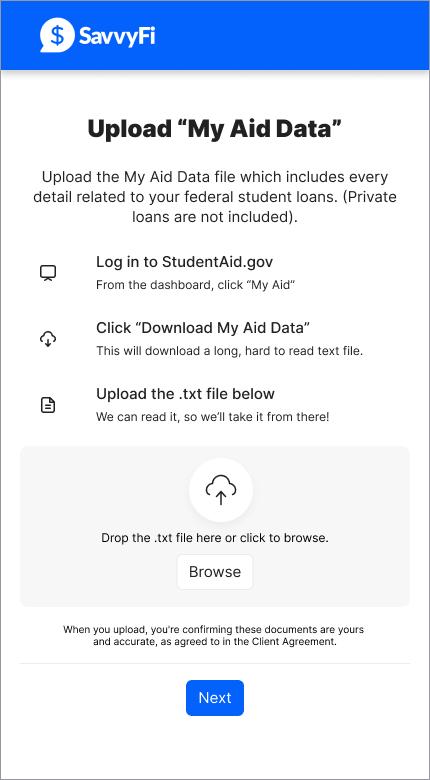
| . | B. Upload a My Aid Data (MAD) file | |
1 | ||
| You can find your "My Aid Data" file by logging into your account on StudentAid.gov. It is a downloadable summary of your federal student loan and grant history, including loan balances, disbursements, servicers, repayment plans, and more. Need help finding the MAD file on StudentAid.gov??
| ||
 | ||
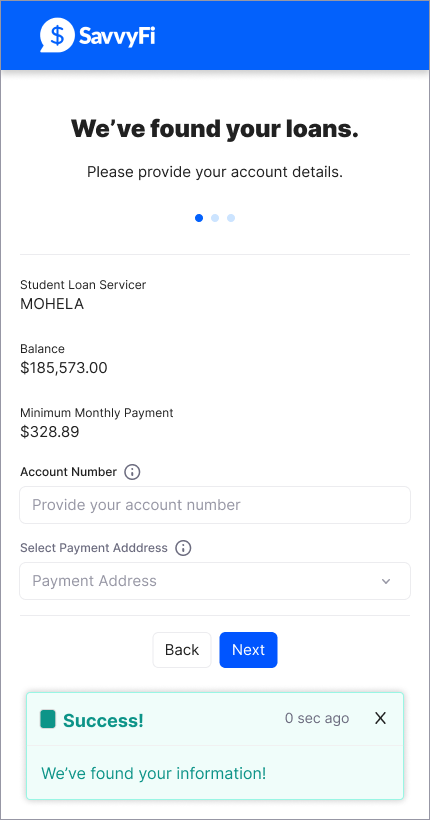
## | Next, you'll review what we found. Then you can provide any missing information. If you are part of a Student Loan Employer Contribution program, you are required to provide your account number and select a payment address. | |
 | ||
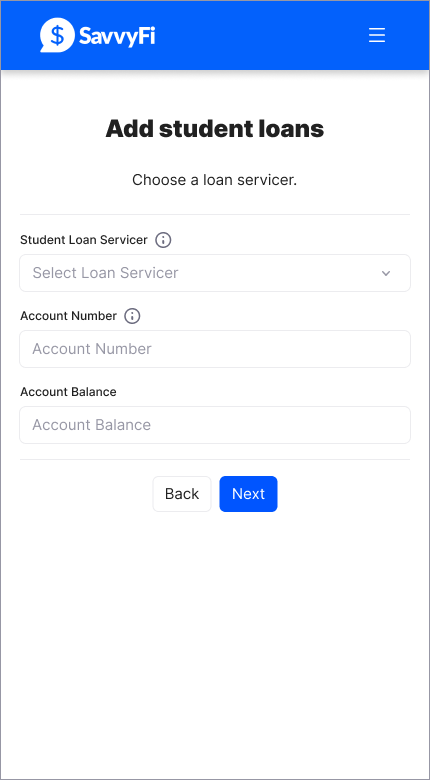
| 3.C. | Enter your loan information yourself. | |
1. | Select your loan servicer, enter your account numbers, and select the payment address. (Loan servicers often have multiple places to deliver payments.) | |
 | ||
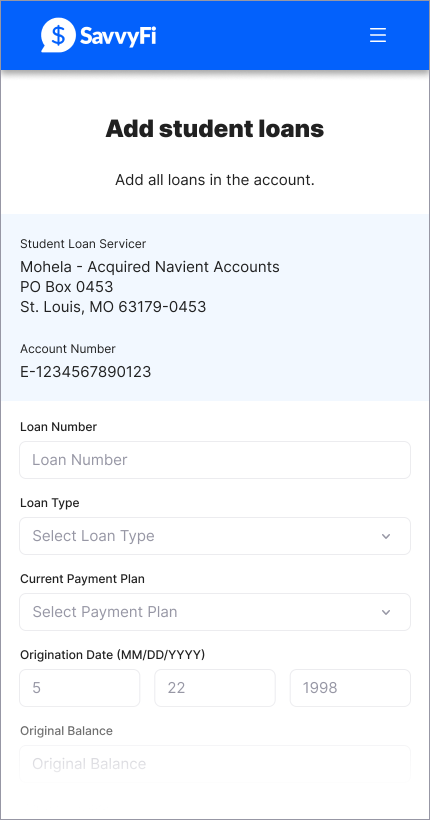
2. | You may have multiple loans associated with one loan servicer. Enter the details here. | |
 | ||
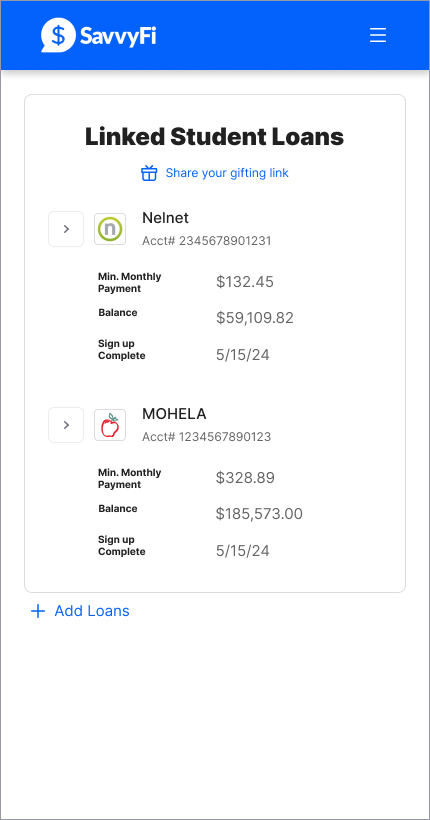
| 4. | Once you're done, you'll return to your Dashboard. | |
 | ||
Please reach out with any questions or if you need assistance: support@savvyfi.co.
Was this article helpful?
That’s Great!
Thank you for your feedback
Sorry! We couldn't be helpful
Thank you for your feedback
Feedback sent
We appreciate your effort and will try to fix the article